
Install the NQC app
Add it to your home screen so it opens like any other app. It takes a minute.
Start sign-upiPhone (Safari)
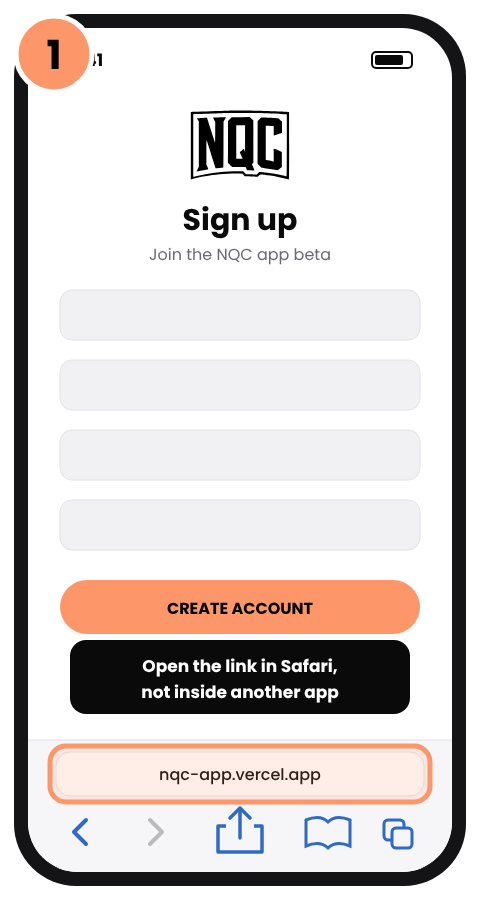
1. Open your link in Safari
Tap Start sign-up. If it opens in another app (like Gmail), use its menu to open it in Safari.
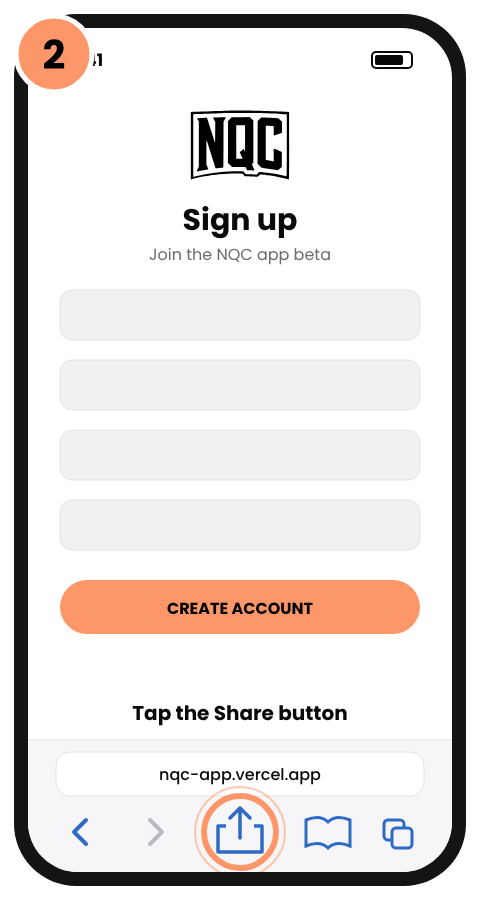
2. Tap Share
The square with an arrow pointing up, at the bottom of the screen (on iPad, top right).
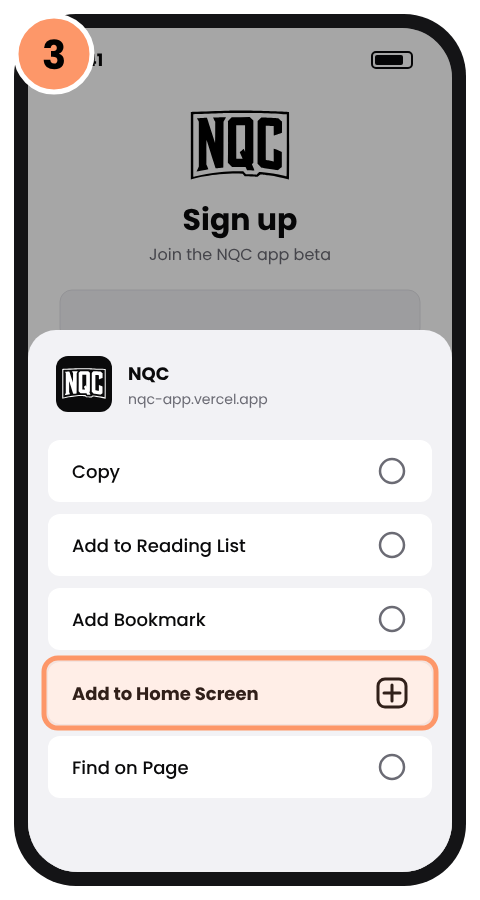
3. Tap Add to Home Screen
Scroll down the list a little to find it.
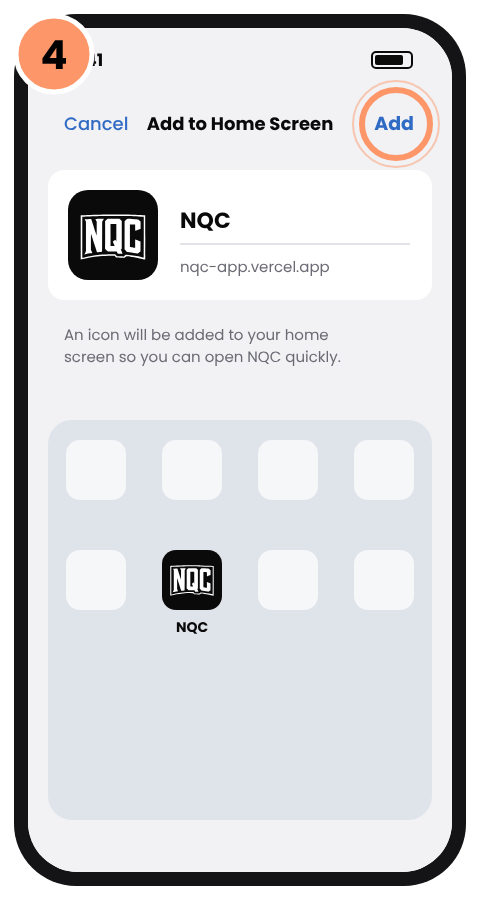
4. Tap Add
NQC is now on your home screen. Open it from there from now on.
Android (Chrome)
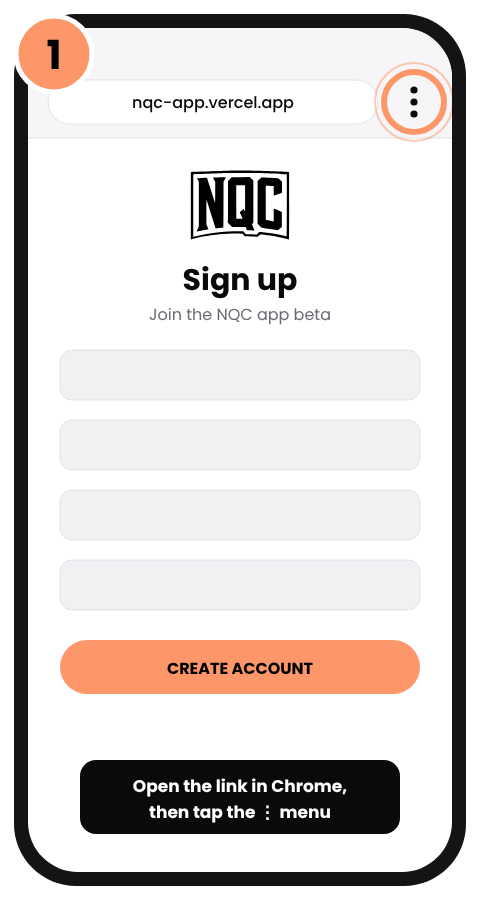
1. Open your link in Chrome
Tap Start sign-up, then tap the ⋮ menu at the top right.
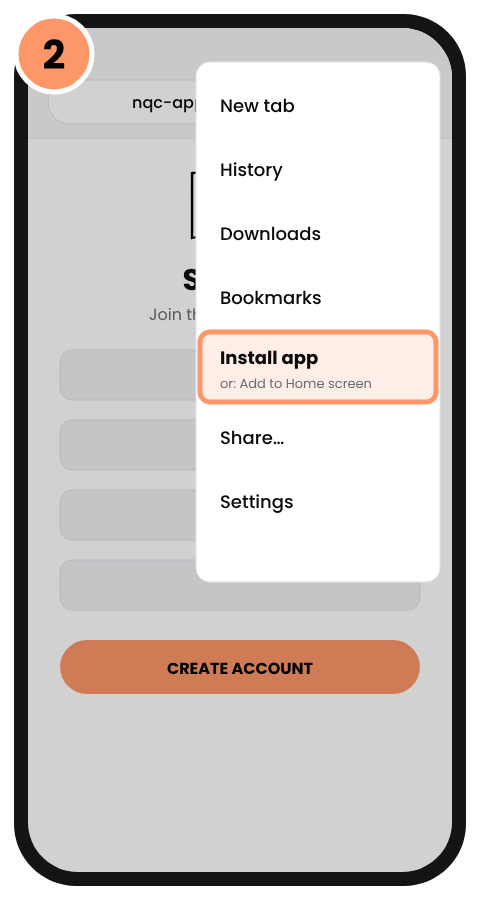
2. Tap Install app
On some phones it's called Add to Home screen.
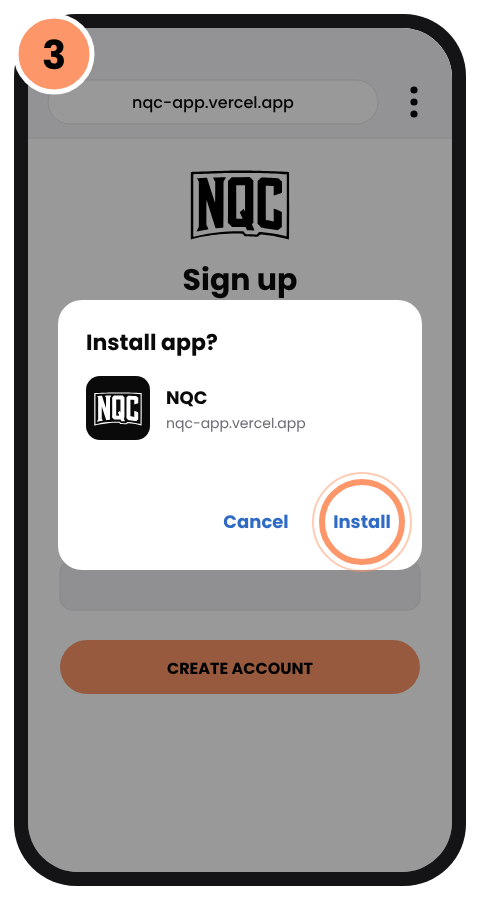
3. Tap Install
NQC is now on your home screen. Open it from there from now on.
Create Your Account
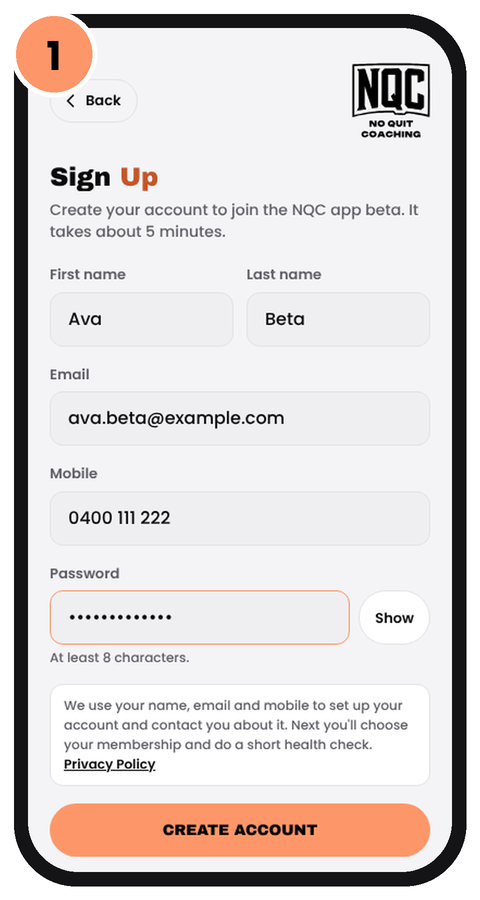
1. Create your account
Your name, email, mobile and a password (8 characters or more).
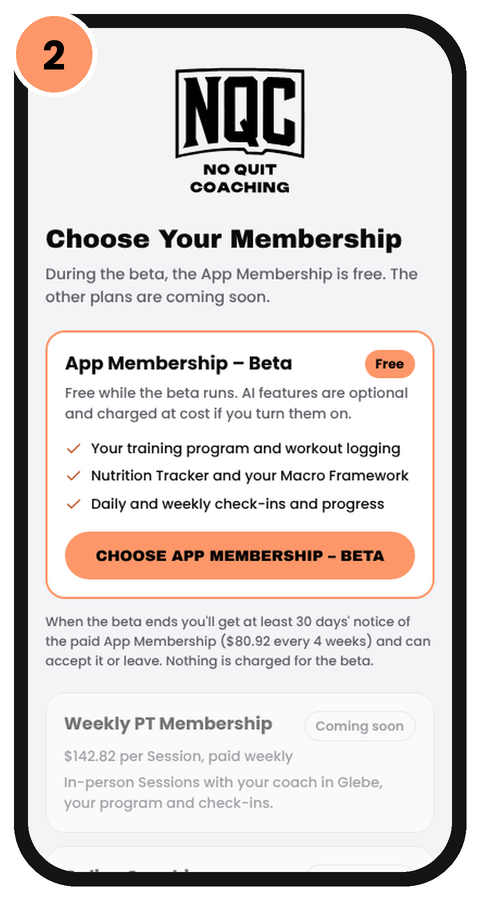
2. Choose App Membership – Beta
It's free while the beta runs. The other plans say Coming soon.
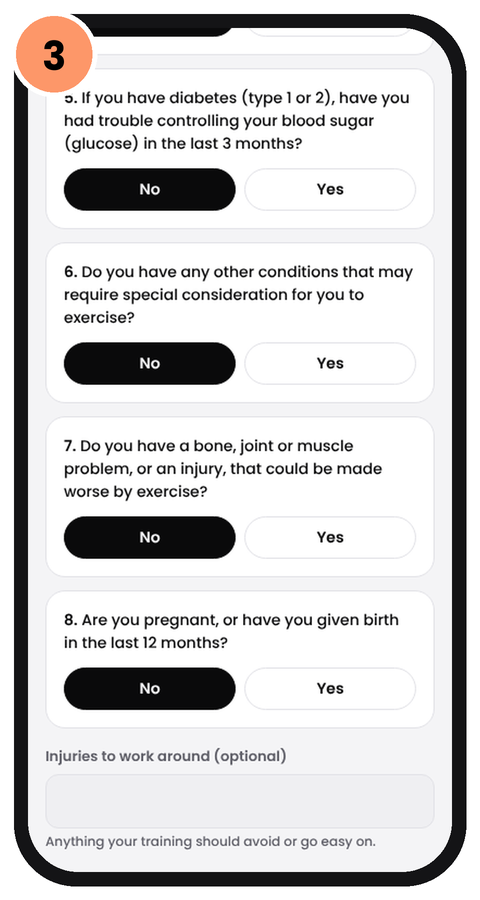
3. Do the health check
A few yes or no questions so your training is safe. Be honest: only you, your coach and NQC staff see it.
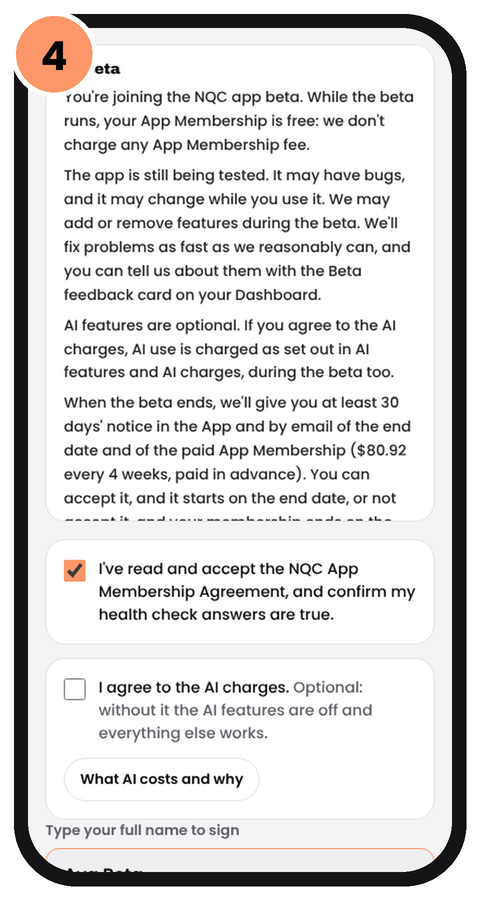
4. Read and sign your agreement
Tick to accept and type your name to sign. AI features are a separate, optional tick.
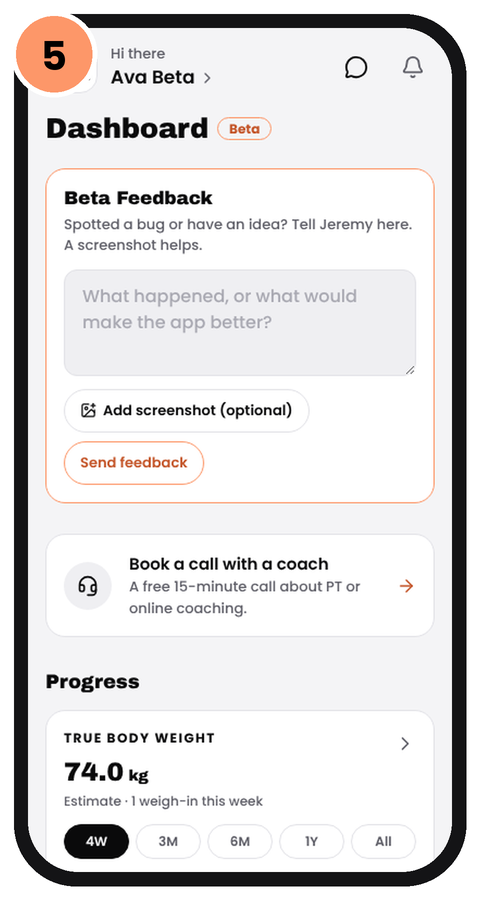
5. You're in
Set up your profile and you'll land on your Dashboard. The Beta feedback card is there for bugs and ideas.
What the beta includes
- Your training program, with every set and rep logged as you go
- The Nutrition Tracker and your targets (calories and macros)
- Daily and weekly check-ins, progress photos and your weight trend
- The App Membership free for as long as the beta runs
It's a test version, so some things may not work perfectly, and features may change. Before the beta ends you'll get at least 30 days' notice of the paid App Membership ($79.80 every 4 weeks). You choose to carry on or leave, and nothing is charged for the beta.
What AI costs and why
Each time you use the AI, it costs us to run it with our AI provider. We pass that cost on at what it costs us, including fees and GST — no markup.
Most uses cost less than the most per use below. A longer chat message, a bigger photo or a restaurant the AI has to look up costs a little more; it never goes over the maximum.
Your AI charges are added up each month and taken with your normal payment (or charged to your card on the 1st if you don't have a regular payment). If they reach $12.50 in a month, that amount is charged straight away.
AI is optional. Stop using it any time and everything else in the app keeps working. AI your coach uses for you is paid by NQC.
If you cancel: your last month of app access is already paid for, so you won't get an App Membership bill for it, but AI use is billed separately. If you used AI, you'll get one final AI bill at the end of the month your access ends. You can turn AI off when you cancel. After that bill, nothing more is charged.
| AI feature | Most per use |
|---|---|
| AI TrackerOne scan in the Nutrition Tracker: a photo and/or a description of what you ate | $0.45 |
| Ask NQC messageOne message to the AI chat, including changing your program or Food Framework through the chat | $0.60 |
| Program uploadUploading a program you already follow (photos, screenshots or a PDF) | $0.35 |
| Meal plan uploadUploading a meal plan you already follow (photos, screenshots or a PDF) into a Food Framework | $0.35 |
| Meal plan change by typingChanging one meal in your Food Framework by typing what you want (Edit current meal plan with AI), including one follow-up question if the AI needs it | $0.30 |
| Program change by typingChanging your training program by typing what you want (Edit current program with AI), including follow-up changes within 15 minutes | $0.30 |
| Custom avatarMaking your avatar from a photo of yourself: 2 versions to choose from and your program cover. Each remake is a new use | $0.50 |
| AI Check-InApp Members: one read of your last 4 weekly check-ins (progress photos, measurements and weight) plus any food and training logs, with suggestions and a body fat estimate | $0.30 |
Need a hand?
Email jeremy@noquitcoaching.com.au. Once you're in, More → Tech Support in the app works too.